Who Has Access to Your Google Account? How to Check Properly
Published by BugSweepingTSCM · Published:
The device list is the place to look, and it is easy to misread. Google lists sessions rather than devices, multiple entries for one phone are normal, and signing a device out leaves third-party app access untouched.
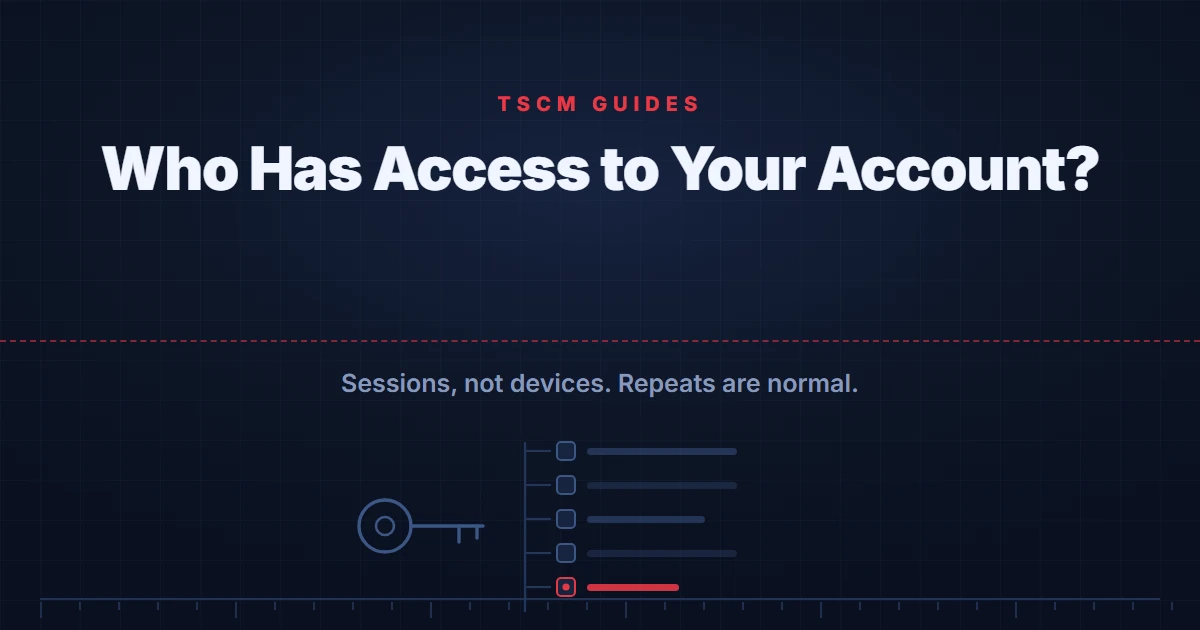
Short answer: Open your Google Account, go to Security and sign-in, and under Your devices choose Manage all devices. Google shows devices signed in now or in the last few weeks. Two things catch people out: the list shows sessions rather than devices, so repeats are normal, and signing a device out does not revoke third-party app access.
An email account is the most consequential thing most people own online, because it is the reset route for everything else. Somebody with access to it does not need access to anything else; they can obtain it. That is why this check is worth doing carefully rather than quickly.
It is also worth doing calmly. The overwhelming majority of unfamiliar entries in these lists turn out to be the reader's own devices, an old phone, a browser on a work computer, a tablet somebody in the house uses. The point of the exercise is to account for every entry positively, not to find something frightening.
The route Google publishes
Google documents this rather than leaving it to be discovered, and the steps are short. In its guidance on devices with account access, the route is: open your Google Account, go to "Security & sign-in", and in the "Your devices" panel select "Manage all devices".
What you get is described precisely: "You'll see devices where you're currently signed in to your Google Account or have been in the last few weeks." That window matters. An absence from this list is not proof that nothing happened, only that nothing has happened recently.
Why one phone appears several times
This is the detail that generates most of the false alarms, and Google explains it plainly without most people reading that far.
The list shows sessions, not only devices. A session, in Google's words, is "a period of time during which you're signed in to our Google Account", and several sessions on one device are entirely normal. A phone that has signed in through different apps, or over time, can therefore occupy several rows.
It has a practical consequence worth holding on to: if you decide to remove a device and it shows multiple sessions, signing out of one achieves very little. Google's own instruction is that where a device name shows several sessions, you sign out of all of them.
The gap a sign-out leaves behind
Removing a session ends that sign-in. It does not touch a second kind of access that sits alongside it and is far easier to forget.
Third-party applications and services that you have connected to your account hold permissions granted separately from any sign-in. An app you authorised years ago and have not opened since may still be able to reach your mail, your files or your calendar, and no amount of signing devices out will change that. Those connections live in the same security settings and have to be reviewed on their own terms.
This is the single most common blind spot in account hygiene, and it is the reason a reader who has already "checked their devices" may still have an open door.
What to check, in order
Do this from a device you believe is clean, not from the one you are suspicious about.
- The device and session list, accounting for every entry rather than looking for an obvious intruder.
- Recent security activity, which records events such as sign-ins and password changes and is often more informative than the device list on its own.
- Recovery phone number and email address. This is the step people skip and it matters most. Somebody who has changed the recovery details can take the account back after you have removed them, so a password change alone does not settle it.
- Anything forwarding your mail onward, including filters that quietly send copies elsewhere. Forwarding survives a password change and is invisible in ordinary use.
- Third-party app access, as described above.
- Then change the password and review two-step verification. Doing it in this order means you have seen the state of the account before disturbing it.
When the account is the symptom rather than the problem
If you remove a session and it returns, the information has changed, and it is worth stopping to notice that rather than simply removing it again.
A session that comes back means a live route in: somebody holding the password, or continuing physical access to a device that is signed in. The same is true if recovery details change back, or if forwarding reappears. At that point the question is no longer about the account. It is about who has had your devices or your credentials.
If the person you suspect is someone close to you, sequence matters more than speed, because removing their access is visible to them. Our guide to phone monitoring and stalkerware sets out why acting in the wrong order can make things worse, and our guide to whether someone can read your WhatsApp messages covers the linked-device version of the same problem.
Where the access came from an employer's equipment rather than an individual, that is a different relationship again, and our guide to what an employer can actually monitor covers it.
What an examination can and cannot establish
A physical examination reports what was found in the areas accessed, by the methods used, under the conditions present, at the time of the visit. It can report what was physically found and what was transmitting in the bands examined while the examiner was present. It cannot establish that a device recording to internal memory is absent, because such a device emits nothing.
None of that reaches an account question, and it is worth saying so before anybody spends money in the wrong place. Who is signed into your email is answered in the account's own settings, in the list Google publishes, in about ten minutes. A sweep of a room cannot tell you anything about it. Our national guide to bug sweeping sets out what an examination does cover, and this sits outside it.
Frequently asked questions
How do I see who has access to my Google account?
Google publishes the route. Open your Google Account, go to Security and sign-in, and in the Your devices panel choose Manage all devices. Google says the list shows devices where you are currently signed in or have been in the last few weeks. Read every entry rather than scanning for something alarming, because a device you set up yourself and forgot looks exactly like one you did not.
Why does one device appear several times in the list?
Because Google lists sessions rather than only devices. Google describes a session as a period of time during which you are signed in to your account, and several sessions on a single device are normal rather than suspicious. The practical consequence is that if you decide to sign a device out, and it shows multiple sessions, you need to sign out of all of them rather than just the first.
I signed a device out and it came back. What does that mean?
It means whoever is using it still has a way in, and that is more informative than the original entry was. A session that returns after being removed points at either a saved password somebody else holds or continuing physical access to a device. At that point the useful step is changing the password and reviewing two-step verification rather than signing the session out again.
Does signing a device out remove an app's access as well?
No, and this is the gap most people miss. Third-party applications and services that you connected to your account hold their own access, granted separately, and a session sign-out does not revoke it. Those connections are listed in the same security settings under third-party access and need reviewing on their own terms, because an old app you no longer use may still be able to reach your data.
What should I check first if I think somebody is in my account?
In this order: the device and session list, recent security activity, the account recovery phone number and email address, and anything forwarding your mail onward. Recovery details matter most, because somebody who has changed them can take the account back after you remove them. Do all of it from a device you believe is clean, and change the password before you finish rather than after.
Is this the same problem as spyware on my phone?
No, and the difference decides what you should do. Account access means somebody has your credentials or a live session, and it is fixed in the account's own settings. Software installed on a device is a different problem with different evidence, and removing it first can be the wrong move. Our guide to phone monitoring and stalkerware deals with that case.
Think the access started with the device rather than the account?
If somebody has had physical access to your phone or your home, the account is one symptom rather than the whole problem. A private consultation can help you work out what can realistically be established, and in what order.
Request a consultation on WhatsApp